
How to Screen Share WhatsApp Web Without Showing Your Chats

Share WhatsApp Web on Zoom, Google Meet or a screen recording while your contacts, messages and photos stay blurred. Free browser extension, two minute setup.
Ever needed to share WhatsApp Web on a Zoom call, a Google Meet, or a screen recording? The moment you do, everything is on show: your full contact list on the left, every open chat, profile photos, and whatever image someone sent you an hour ago. You want to show one conversation, and you end up exposing all of them.
This guide shows how to screen share WhatsApp Web while the sensitive parts stay blurred. It works for live calls and for recordings, and the blur stays in place while you scroll and type. Here is the video version, and the written steps are below it.
What you need
BlurWeb App is a browser extension that blurs anything on a webpage. It works on Chrome, Edge, Brave, Firefox and other Chromium browsers, and there is a free Safari version. Install it, click the extension icon, and enter your license key. That is the whole setup.
Once it is on, hover over the page and you will see a border around whatever your mouse is on. Click to blur it, click again to unblur. That is the basic move.
Step 1: Hide all your contacts at once
You could click each contact one by one, but there is a faster way.
- Open WhatsApp Web and click the BlurWeb icon.
- Choose Blur Area.
- Drag a rectangle over the contact list, from the top down to just above the bottom edge.
- Click Apply.
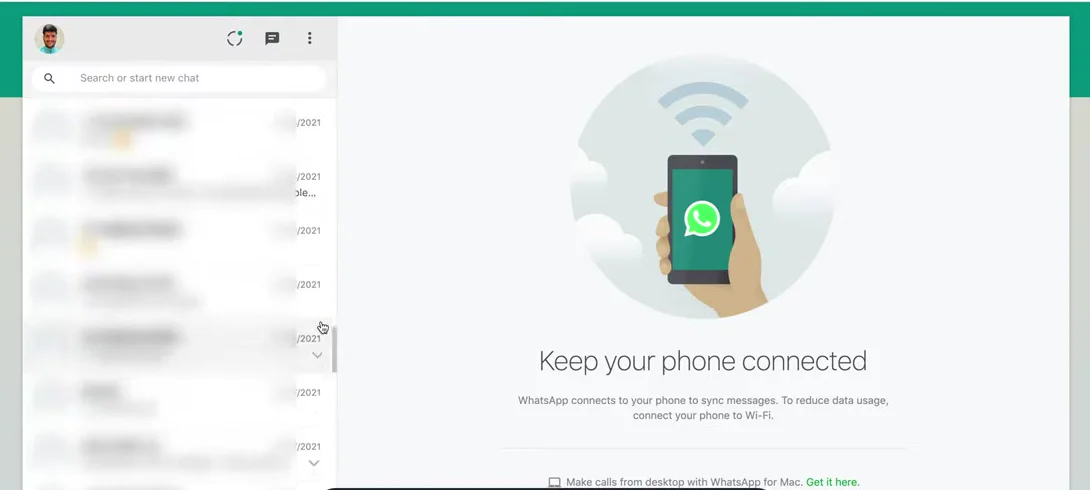
Leave a small strip at the bottom of the list unblurred. That gap is where you put your mouse to scroll. If the blur covers the entire column you will not be able to scroll the contact list, so stop the rectangle a little short of the bottom edge.
Now share your screen. Your contacts are a grey block, the chat you opened is visible, and you can still scroll and switch chats.
Step 2: Hide a photo or a specific message
Someone sent an image you do not want on the recording. Same tool, smaller rectangle.
- Click the BlurWeb icon and choose Blur Area.
- Drag over the image or the message bubble.
- Click Apply.
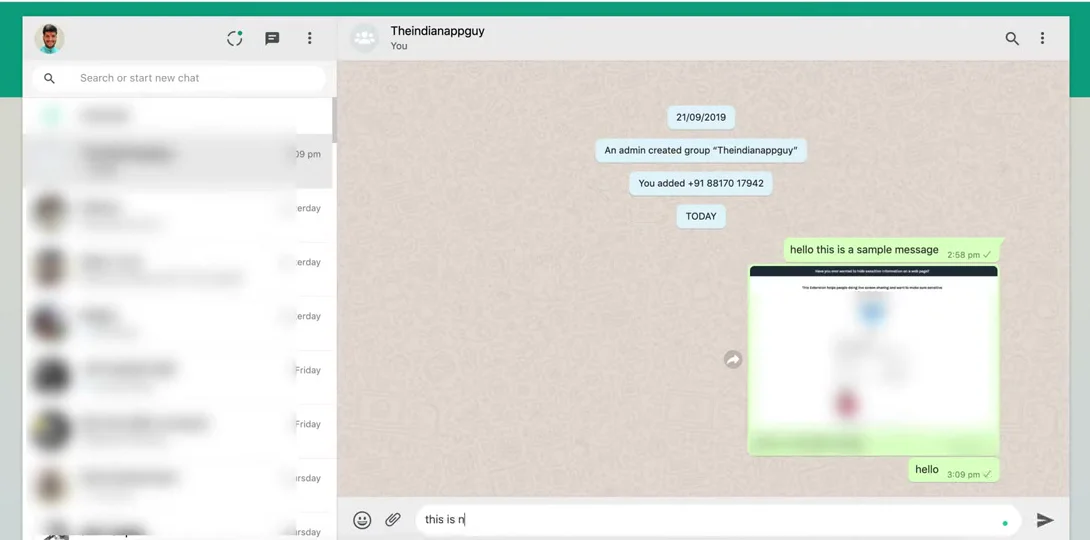
Draw over the space you want hidden and it is done. You can add as many areas as you need.
Step 3: Move the blur when the chat moves
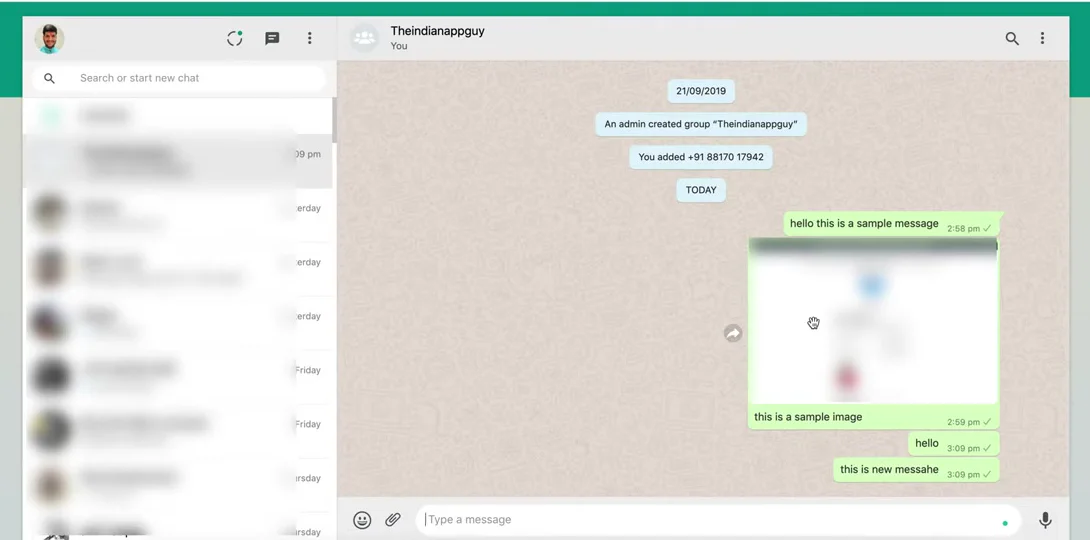
New messages push the older ones up, so a blur you placed over an image can end up over the wrong bubble. Grab the blurred area and drag it to where you need it. The same trick works for your own profile photo in the top left, or for anything else that shifts around during the call.
Tips for Zoom, Google Meet and recordings
- Set up before you share. Blur first, then start sharing. The blur is only on your screen and everyone else sees the blurred version, but there is no reason to give people a one second glimpse.
- Share the browser tab, not the whole screen. Zoom and Meet both let you share a single tab. That keeps your desktop, notifications and other apps out of the frame.
- Recording works the same way. Loom, OBS, Screen Studio, QuickTime, all of them capture what is on the page, so the blur is baked into the recording.
- Turn on Keep Blur if you do this often. Keep Blur saves the blurred areas for web.whatsapp.com, so next time you open it the contact list is already hidden.
- Screenshots are safe too. Anything blurred on screen is blurred in the screenshot.
FAQs
Q: Can people on the call see through the blur? A: No. The blur is rendered on the page itself, so the shared screen, the recording and any screenshot all show the blurred version.
Q: Does this work on the WhatsApp desktop app? A: No. BlurWeb is a browser extension and only works on web.whatsapp.com. For the desktop app or anything outside the browser, use BlurScreen App, which blurs any area of the screen.
Q: Will the blur stay if I scroll or switch chats? A: A blur placed with Blur Area stays pinned to that spot on the page, so the contact list stays hidden while you scroll it and switch between chats. If new messages move an image, drag the blur to follow it.
Q: Which browsers are supported? A: Chrome, Edge, Brave, Firefox and other Chromium browsers. Safari has a free version.
Q: Do I need to blur again every time I open WhatsApp Web? A: Not if you turn on Keep Blur. It remembers the blurred areas for that site and applies them on the next load.
You May Also Like
- How to Share Your Ads Manager Screen Without Leaking Spend or Client Data
- Claude Blurred My Password Out of a Screen Recording
- 5 Tips for Secure Screen Sharing
- 9+ Chrome Shortcut keys
- Apps to Blur Pictures in 2026 (iPhone, Android, PC)
- Apps to Blur Things Out of Pictures (Free Picks)
- The Best AI Photo Editors in 2026
- Best Blur Background Apps for iOS and Android (2026)